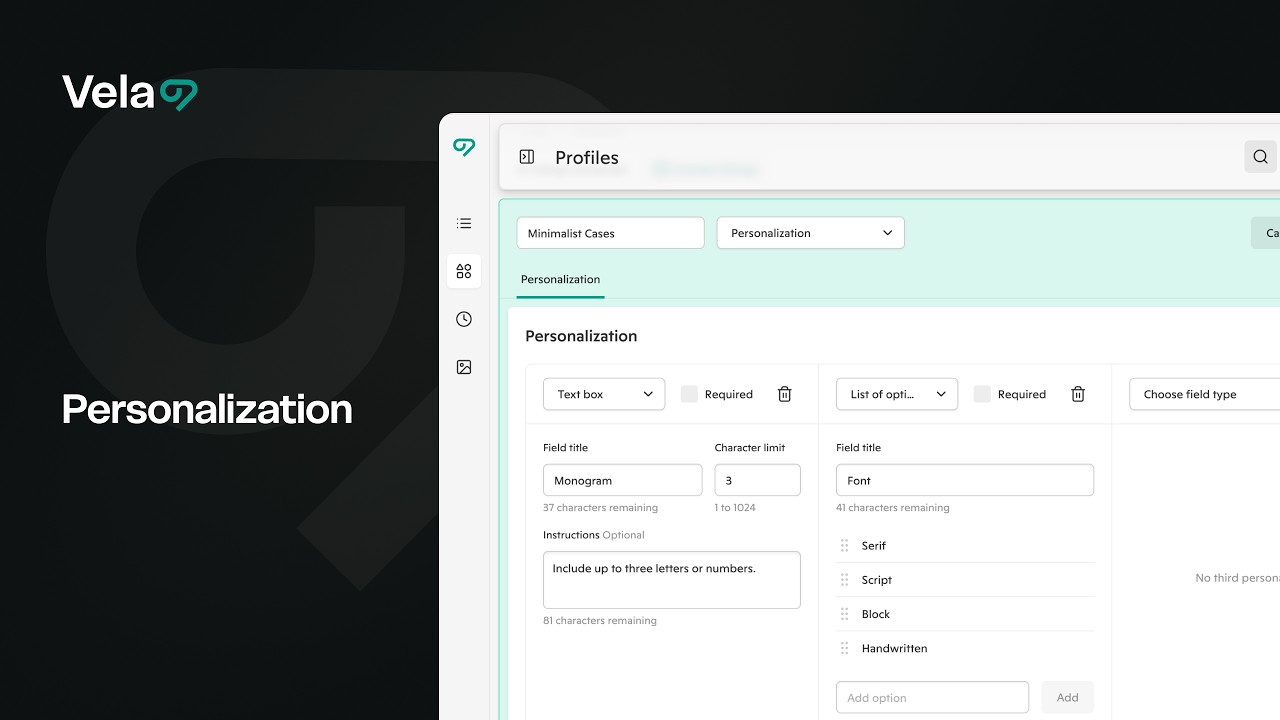
Easily apply personalization across your entire shop with Vela using Profiles and Bulk Editing.
Etsy's new Personalization features let customers tell you what they want customized directly from the listing page. Instead of messaging back and forth after the sale, the details land right inside the order, so you can get straight to making when a buyer places an order.
Vela connects directly to Etsy so you can roll personalization out across your whole shop, without having to edit each listing individually.
How to...
- When to use personalization (vs. variations or custom listings)
- Understand the three personalization field types
- Set up personalization through a Vela Profile
- Write personalization fields buyers understand
- Connect the profile to your listings
- Update personalization across all connected listings
- Adjust personalization on a single listing
- Troubleshooting
1. When to use personalization
Profiles can be thought of as reusable templates that can be used across multiple platforms. Save your listing settings, set personalization fields once, connect shared listings, and future edits will apply to all.
2. Understand the three personalization field types
Etsy supports three personalization field types — the same three you'll see in Vela's profile editor.
3. Set up personalization through a Vela Profile
Personalization can be configured directly in Etsy's Shop Manager, but only one listing at a time. In Vela, you build it once in a Profile and push it to as many listings as you want at once — and any future edit flows through to every connected listing.
Create the profile
- From the main listings dashboard, click the profiles icon in the left menu.
- Click Create profile and give it a clear name (e.g., "Minimalist Case Personalization").
- Scroll the attributes list and check Personalization. You can bundle personalization with other attributes like variations or shipping profile — for personalization-only changes, leave the rest unchecked.
Add your personalization fields
- Click the Choose field type dropdown and select Text box, List of options, or File upload.
- Fill in the Field Title, any instructions, and the settings specific to that field type (character limit, options, file count).
- Check or uncheck Required depending on whether buyers have to fill it in to check out.
- Repeat up to 5 fields per listing. You can mix and match field types freely — for example, one Text box, two Lists of options, and one File upload.
- Click Save.
4. Write personalization fields buyers understand
The better your field titles and instructions, the fewer buyer questions and revisions you'll deal with later.
- Keep each field focused on one detail. One field for a name, one for a font, one for a color — not "Name, font, and color" in a single text box.
- Titles should describe the input clearly. "Name for necklace" is better than "Personalization 1."
- Instructions should tell buyers how the input will be used, show an example, and state any limits. For instance: "Enter the name to engrave on the front of the card (Example: Clifton). Up to 20 characters."
- For List of options, match your listing images. If your Font Style options are "Font 1, Font 2, Font 3," the image in your listing photos should label them the same way.
- For File upload, tell buyers exactly what you need. "Upload a clear, well-lit photo of your pet, facing the camera."
For Etsy's official recommendations on titles, instructions, and photos, see Etsy's personalization help article.
5. Connect the profile to your listings
- From the profile you just saved, click Connect listings at the bottom.
- In the listings modal, use the search bar or filters to find the listings you want. You can filter by section, tag, or any other listing attribute — not just title or SKU.
- Check the listings you want connected, or Select all to connect every match.
- Click Connect listings to sync.
The sync indicator appears at the top of the page. Most updates finish in a minute or two, depending on how many listings are connected and how much detail is in the profile.
6. Update personalization across all connected listings
This is the payoff. When the market shifts, your shop evolves, or you simply want to try something new, you don't have to touch every listing:
- Open the profile from the profiles dashboard.
- Make your changes — delete a field, add a new option, change a character limit, swap a file type.
- Click Save, then Update current profile.
- Every listing connected to the profile updates automatically in your Etsy shop.
A few examples of what this looks like in practice:
- Drop "Logo Upload" from every minimalist-case listing? Delete the File upload field, save. Done.
- Add a "Handwritten" option to your Font list? Add the option, save. Every connected listing now offers Handwritten.
- Need to tighten character limits across a whole collection? Edit once, save.
7. Adjust personalization on a single listing
Sometimes, a specific listing requires a unique adjustment that shouldn’t be applied to the rest of the listings. For instance, a character limit for a longer name, an additional option exclusive to that item, or different instructions.
From the bulk editor:
- From the main listings page, click the profile filter on the left sidebar (it appears automatically once your profile is connected).
- Select the listings you want and click Edit.
- In the bulk editor, find Personalization in the sidebar under Listings.
- Scroll to the listing you want to change and edit just that one field.
From a single listing:
- From the main listings page, click any listing to open it.
- Scroll to the Personalization section.
- Make your edits and save.
8. Troubleshooting
If personalization isn't behaving the way we expect, the usual suspects are sync timing or field setup. Here's a walkthrough of the common ones.
Personalization isn't showing up on Etsy after sync
A few things to check:
- Give it a minute or two. Sync time depends on the size of the batch — a handful of listings is near-instant, but a few hundred at once can take longer as Etsy processes the updates.
- Refresh the Etsy listing page in a fresh browser tab. A cached version sometimes doesn't reflect the update right away.
- Confirm the listing was included in the profile's connected listings, or in the bulk-edit selection. If we missed it, it won't sync.
- Click Refresh Shop from the main listings dashboard to pull the latest state from Etsy.
- If it's been more than 24 hours and the field still isn't live, reach out through the chat window at the bottom right of the dashboard, and we'll investigate.
A field won't save, or I'm getting a character or file error
Each field type has limits we need to stay within:
- Text box: the character limit has to be between 1 and 1024. Anything outside that range won't save.
- List of options: up to 30 options per field. A 31st option won't go through.
- File upload: up to 10 files per field, and files have to be .jpg, .png, .svg, .heic, or .pdf, at 100 MB or less each. Other formats — .webp and .tiff, for example — won't be accepted.
If we see an error we can't place, it's usually one of these three limits. Double-check each field before moving on.
Fields saved, but Required/Optional looks wrong on the live listing
The Required checkbox decides whether a shopper has to fill the field in before they can check out. Unchecked means optional. A quick audit of each field's checkbox in the profile or the listing editor usually clears things up.
If Required/Optional looks right in Vela but not on Etsy, re-sync the listing. A stale cache on Etsy's side is the usual culprit.
Changes appeared, then reverted
If a listing's personalization fields update and later snap back to an older version, it's usually because the connected profile was edited and saved again, which overwrites each connected listing's personalization.
- If a specific listing needs to keep its own personalization setup, disconnect it from the profile first, then edit it directly.
- If we want a shared starting point but don't need future profile edits to flow through, save the profile in Template Mode. Template-mode profiles drop the fields into new listings but don't maintain a connection after that.
Learn more: Profiles Overview